2.0 How to Copy or Move a Harvest SCM Project from One Database to Other
2.1 Prerequisites
2.2 Copy the Harvest SCM Project
2.3 Verify the Project Data Movement
2.3.1 Copy or Move Project Logs
2.3.2 Troubleshooting the Data Movement
2.3.3 Upgrade Support
2.4 Delete the Source Harvest SCM Project
Product: CA Harvest Software Change Manager
Release: 12.5
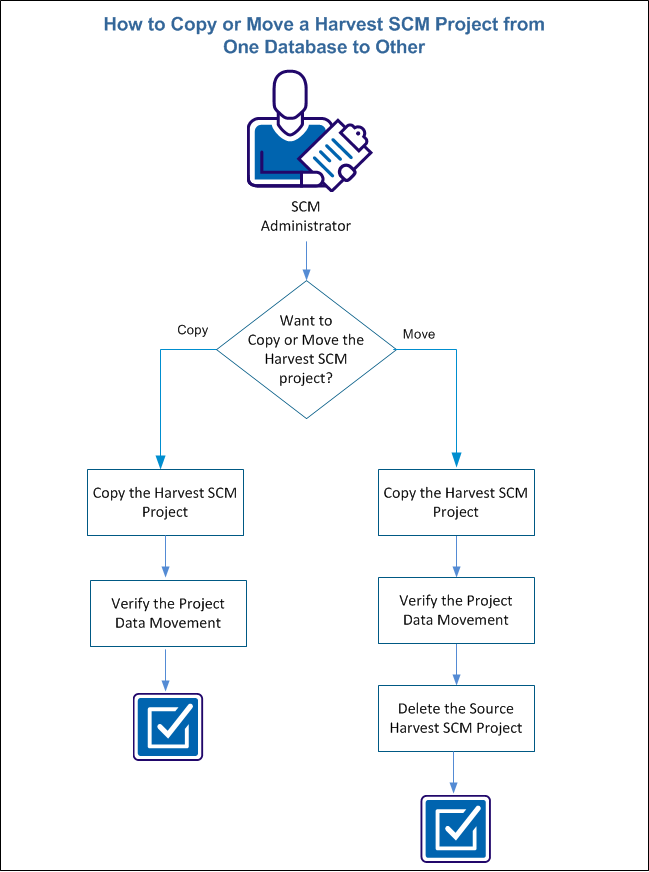
This scenario describes how an SCM Administrator copies or moves a project from one database to another.
This scenario primarily resolves the performance challenge of the SCM database and provides you with the following options for database optimum utilization:
This Knowledge Base Article constitutes a portion of the official CA product documentation for this CA product. This Knowledge Base Article is subject to the following notices, terms and conditions.
As an SCM Administrator, your responsibilities include optimum utilization of databases by reducing the inactive database size and reorganize the databases appropriately.
The following diagram illustrates how you can perform the following tasks using the hmvproj command-line utility:
The prerequisites to execute the command-line utility are as follows:
Note: This ODBC configuration could be the same or similar to what is already being used by the SCM server processes.
The hmvproj is a command-line utility for the Harvest SCM Administrator usage only. This utility does not require the Harvest SCM broker connection or client components, to execute. With the specified ODBC connections to both source database and target database, the project is copied or moved between databases.
Note: This utility is packaged in the installation of Harvest SCM Server component and not available from client installation.
Important! Considering the possible impact to the existing usage, we recommend that you run this utility during off-peak time or your product maintenance period. Depending on the size of project, the copy or move project may take an extended time and database resources to complete the process of query, insert, and update in database. In addition, the verification has been bundled as a post copy project operation to assure the data integrity.
When move project is executed, the source project gets deleted after successful copy and verification of the project. Alternatively, the copy operation can be used and then specify DELETEONLY to remove it from source database.
Important! The target database has to be at same or newer Harvest SCM database schema release level than the source database. This utility returns an error, if target database’s Harvest SCM release level is older than source database.
Follow these steps:
Specifies the ODBC name for the source project database.
Specifies the source database login username.
Specifies the source database login password.
Specifies the ODBC name of the target project database.
Specifies the target database login username.
Specifies the target database login password.
Specifies the source database encrypted login username/password.
Specifies the target database encrypted login username/password.
Note: The encrypted database credentials for both the source and target databases use the convention that the server install is supported.
Specifies the SCM project name.
Specifies the user/user group handling option flag.
Default valid values: 0, 1, 2
Copy all users and user groups.
Copy only users and user groups, which has access to that project.
Ignore user and usergroup.
Note: If you select this option:
For example, all access settings, the approve process user list, and the notify process user list are dropped.
Specifies the form handling option flag.
Default valid values: 0, 1, 2
Ignore form if exists in target database.
Overwrite form if exists in target database and source database one has newer updated date.
Overwrite form if exists in target database.
Specifies the option to delete the project in the source database after completing the copy operation.
Specifies the option to delete the project in the source database directly without copying.
Specifies the option to verify the version data and the amount of data that must be compared for each version data record.
For example, specifying –VERIFYDATA=4096 indicates that the version data must be verified and that for each version data record, the first 4096 bytes of data must be compared.
Specifying –verifydata=0 indicates that the entire version data must be compared for each record.
Note: This option runs as a standalone operation.
Specifies the option of rolling back the copied project, if verify fails.
Specifies the option of SQL getting copied in to the log file for debugging.
The project is copied / moved to the target database.
After you copy / move a project, all the objects including the project lifecycle states, processes, packages, and versions are copied in to the target database. Shared objects, such as a user, user group, form, repository are also copied and the relationship between the objects is retained in the target database. The target database project status remains the same as in the source database when you copy the project.
After you complete the data movement of an SCM project, you must verify the completeness of the data movement. When you execute the hmvproj utility, the data movement verification operation automatically runs after the successful data movement from one database to other.
The verification operation performs the following tasks:
From the log file, analyze the verification results such as the tables that are processed, detailed record counts, and fix any verification errors.
By default, the copied project does not get rolled back (backed out of the target database) if the verification fails. This option lets you investigate and determine if the issues in the verification results are of a major concern.
The hmvproj command produces two output log files. One is a full log file containing all of the information that is associated with the copy or move. This log file is named mvproj_<project name>.log where <project name> is the name of the Harvest project that is being copied. The second log file is a subset of the first. This file contains higher-level information that gives an overview of the copy or move operation. This summary log file is named mvproj_summary_<project name>.log.
Both the log files list the following basic information that is associated with the copy or move operation:
Both logs show table processing during the copy operation and all of the verification information. The difference between the two logs is the detailed information that is provided about the copy operation. The object name and record counts are included in the full log providing a detailed activity of that occurs during the copy.
The verification information is same for both the logs. Each table displays the success and failed counts for all the verified records. Any table with a non-zero failed count results in an overall verification failure. You can investigate this failure to determine the cause of the error and if the error is fatal. However, in any case, consider any verification failure as a fatal error unless, after further investigation, it is considered as acceptable.
In some rare cases, records of a table are intentionally skipped from the copy, because of some of the shared schema objects. The verification detects this and lists the records. However, it does not consider them as errors. In this case, an informational message displays indicating that the reported mismatched records are not to be considered errors.
Symptom:
The moved or copied project contain incomplete data in the target database due to execution failure.
Solution:
Use the -DELETEONLY option to clean up the incomplete project in the target database and rerun the utility to move / copy the project.
Symptom:
The execution of move or copy project fails right after processing the [harFormTypeDefs] ( check the log file here ) table with the following error :
“SQL Error: ORA-00955: name is already used by an existing object” or “[SQL Server] There is already an object named ...in the database”
Solution:
This error is caused by the case sensitivity difference of custom form type name between source database and target database. Check table HARFORMTYPE, column FORMTYPENAME, and FORMTABLENAME, and correct the name accordingly. Match the value of both columns (case sensitively) with each other to work properly.
Symptom:
The move or copy of Harvest data with form attachments fails when having same name, but with case insensitive.
Solution:
Before the migration, if there are any form attachments in source and target databases with same name but using different cases, ensure that either of the attachments are renamed to avoid mismatching of form attachments during copy.
The move/copy project enhancement supports the following releases to upgrade to the current release. This upgrade support enables you to use this feature as a project migration utility from one release to the latest release.
If you choose to move the Harvest SCM project to a target database, the Delete option deletes the project from the source, after successful copy and verification of the project in the target database.
This Documentation, which includes embedded help systems and electronically distributed materials, (hereinafter referred to as the “Documentation”) is for your informational purposes only and is subject to change or withdrawal by CA at any time.
This Documentation may not be copied, transferred, reproduced, disclosed, modified or duplicated, in whole or in part, without the prior written consent of CA. This Documentation is confidential and proprietary information of CA and may not be disclosed by you or used for any purpose other than as may be permitted in (i) a separate agreement between you and CA governing your use of the CA software to which the Documentation relates; or (ii) a separate confidentiality agreement between you and CA.
Notwithstanding the foregoing, if you are a licensed user of the software product(s) addressed in the Documentation, you may print or otherwise make available a reasonable number of copies of the Documentation for internal use by you and your employees in connection with that software, provided that all CA copyright notices and legends are affixed to each reproduced copy.
The right to print or otherwise make available copies of the Documentation is limited to the period during which the applicable license for such software remains in full force and effect. Should the license terminate for any reason, it is your responsibility to certify in writing to CA that all copies and partial copies of the Documentation have been returned to CA or destroyed.
TO THE EXTENT PERMITTED BY APPLICABLE LAW, CA PROVIDES THIS DOCUMENTATION “AS IS” WITHOUT WARRANTY OF ANY KIND, INCLUDING WITHOUT LIMITATION, ANY IMPLIED WARRANTIES OF MERCHANTABILITY, FITNESS FOR A PARTICULAR PURPOSE, OR NONINFRINGEMENT. IN NO EVENT WILL CA BE LIABLE TO YOU OR ANY THIRD PARTY FOR ANY LOSS OR DAMAGE, DIRECT OR INDIRECT, FROM THE USE OF THIS DOCUMENTATION, INCLUDING WITHOUT LIMITATION, LOST PROFITS, LOST INVESTMENT, BUSINESS INTERRUPTION, GOODWILL, OR LOST DATA, EVEN IF CA IS EXPRESSLY ADVISED IN ADVANCE OF THE POSSIBILITY OF SUCH LOSS OR DAMAGE.
The use of any software product referenced in the Documentation is governed by the applicable license agreement and such license agreement is not modified in any way by the terms of this notice.
The manufacturer of this Documentation is CA.
Provided with “Restricted Rights.” Use, duplication or disclosure by the United States Government is subject to the restrictions set forth in FAR Sections 12.212, 52.227-14, and 52.227-19(c)(1) - (2) and DFARS Section 252.227-7014(b)(3), as applicable, or their successors.
Copyright © 2013 CA. All rights reserved. All trademarks, trade names, service marks, and logos referenced herein belong to their respective companies.